
If you've spent time on the Mergin Maps community wishlist, you'll have seen this one near the top. Filtering features in the mobile app has been one of the most requested capabilities for a while. It's here now, and if your thumbs have been doing all the heavy lifting scrolling through feature lists, they can finally take a break.
Feature filtering in Mergin Maps
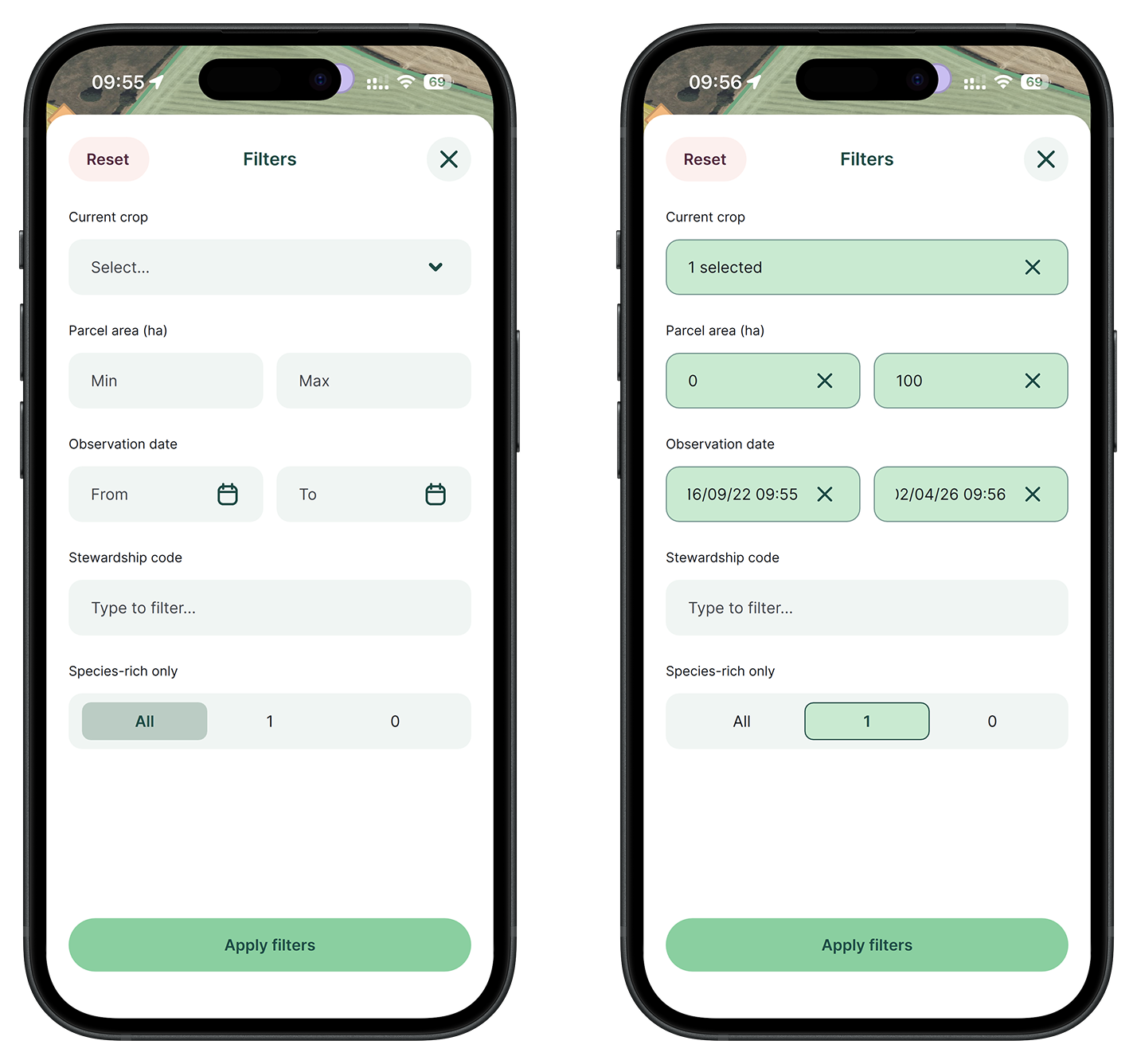
Feature filtering is a new capability in Mergin Maps that lets you narrow down visible map features by field values so you can focus on relevant data during fieldwork. You choose which fields are filterable in the Mergin Maps QGIS plugin, and the Mergin Maps mobile app picks up that configuration when the project is loaded.
Filters work across multiple layers, updating both the map and the feature browsing list. The configuration lives in the QGIS project file alongside other Mergin Maps settings. Sync the project and your whole team gets the same filter options.
How to set up feature filtering
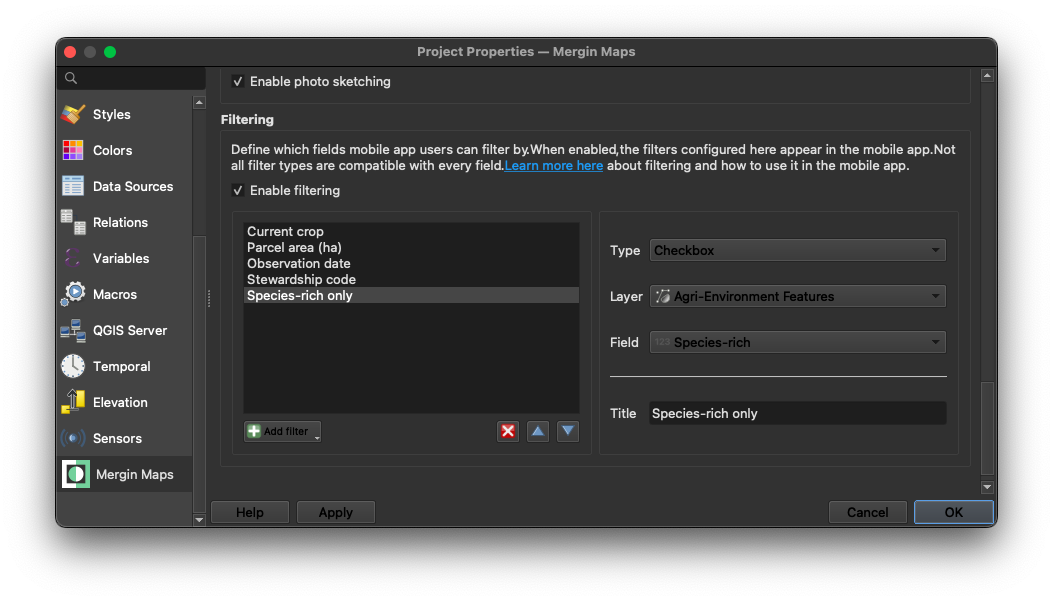
With the Mergin Maps QGIS plugin installed, open QGIS and go to Project → Properties → Mergin Maps. Scroll down to the Filtering section, tick the filtering checkbox, and select which fields should be filterable. Then apply changes and synchronise the project.
In the Mergin Maps mobile app, go to More → Filters, tap to open it, and set your criteria: the map will update immediately. If filtering has not been enabled in the project settings, the filter UI will not appear at all. Ready to try it? Check the documentation.
This feature was co-funded by Ökologis, thank you.
You can share your ideas for what we should build next on the Mergin Maps Wishlist.