
Appearance
How to Display Photo Location and Direction
The orientation of photos captured using the mobile app can be displayed in the project to see the camera's pointing direction.
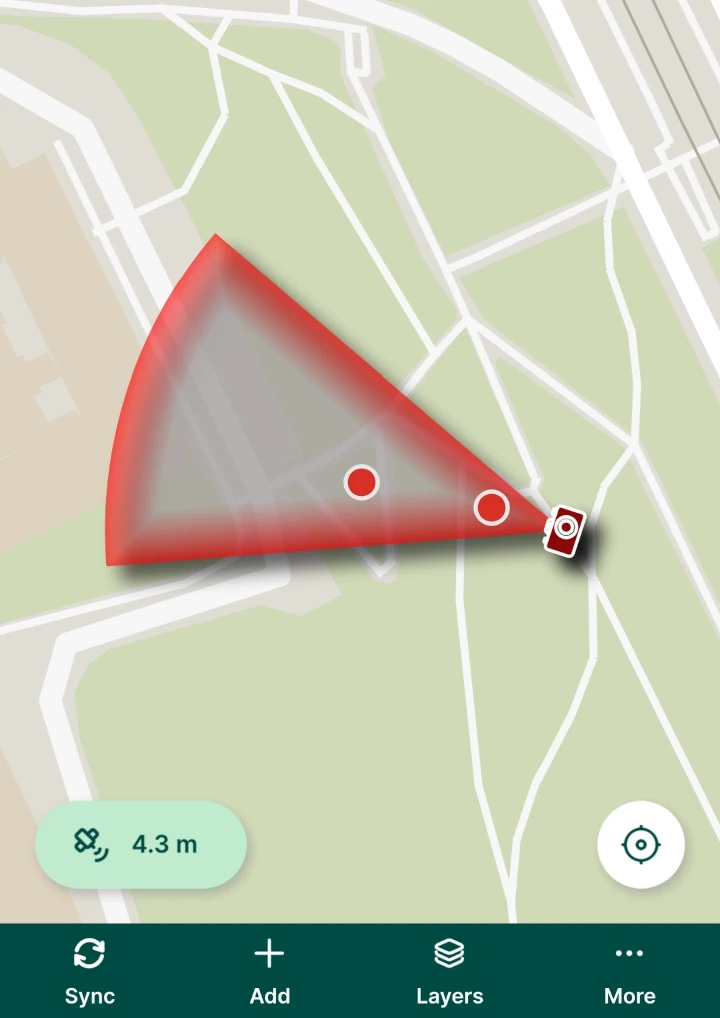
To do so, we will:
- use EXIF metadata to store the location and direction of photos
- use a virtual layer to display a point for each photo (location where the photo was taken)
- style the virtual layer to visualise the photo direction
Example project available
To explore this setup, download this public project  documentation/forms_multiple_photos.
Storing photo direction and location
Here, we use a project that allows attaching multiple photos to one feature. It contains a point survey layer (here: Survey) and a non-spatial table for photos (here: photos).
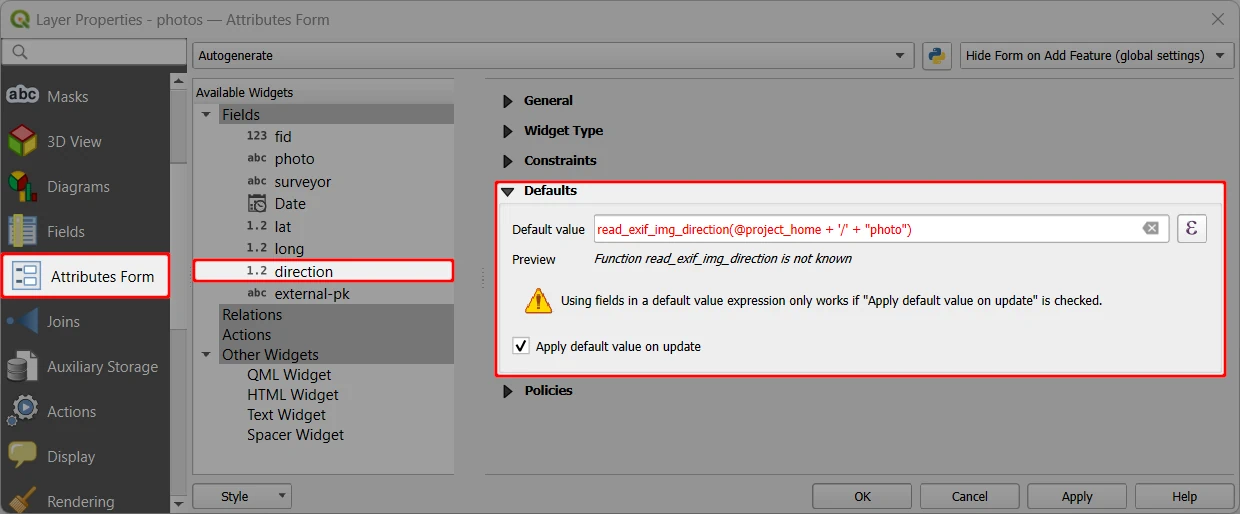
The photos layer has fields for storing location (latitude lat, longitude long) and direction (direction) of the photos. These values are stored automatically, using EXIF metadata as default values (see Geotagging for more details).
We use following default values as photos are stored in a custom folder named photo:
- latitude:
read_exif_latitude(@project_home + '/' + "photo") - longitude:
read_exif_longitude(@project_home + '/' + "photo") - direction:
read_exif_img_direction(@project_home + '/' + "photo")
Location tags
To store EXIF metadata values, location tags have to be allowed in the camera settings.
Virtual layer of photo locations
The location and direction of photos is stored in a non-spatial table photos. Here, we will create a virtual layer, in which every photo has its location displayed as a point.
Virtual layers
Virtual layers are in essence database views. They are created as a result of an SQL query, so they do not contain any data themselves and cannot be edited.
Virtual layers can be embedded in the project, synchronised and used in the mobile app.
See  QGIS User Manual for more information about virtual layers.
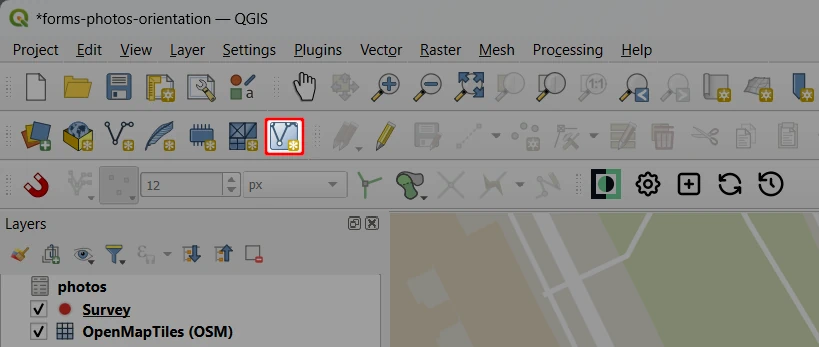
Create a New Virtual Layer
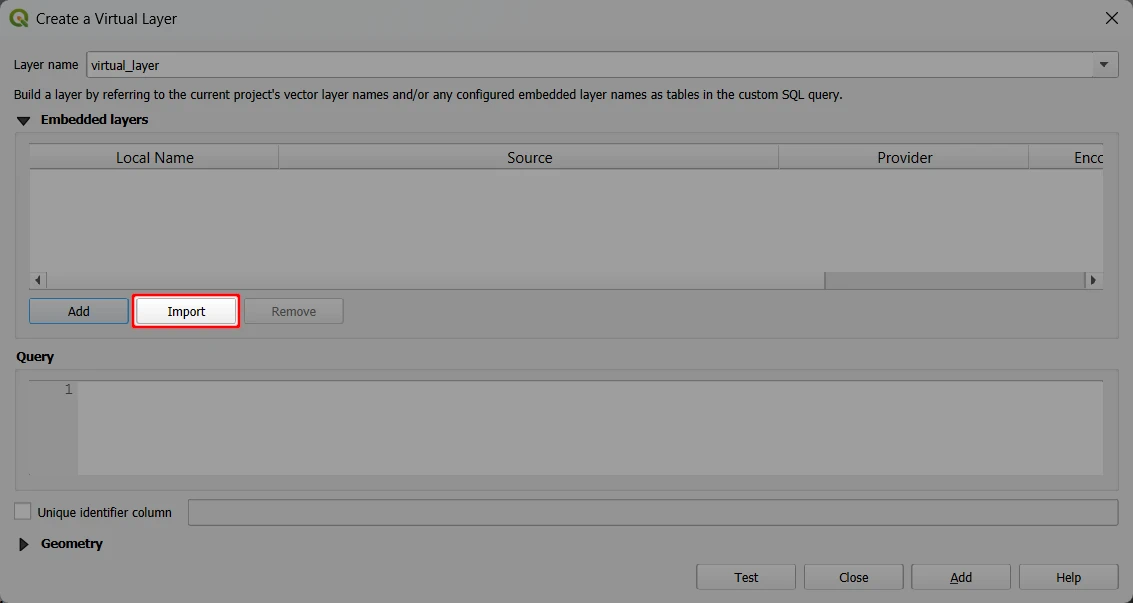
Click on the Import button to choose a layer from the project
Select the layer that contains photos (here:
photos)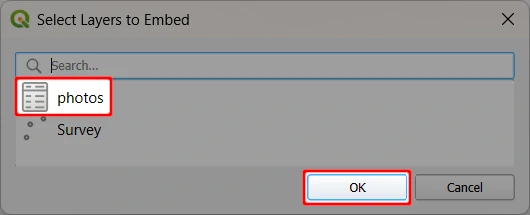
Define the virtual layer:
- Layer name can be set as needed (here:
Photo location) - Embedded layers should contain the imported layer (here:
photos) - Query for the virtual layer. In this case:
- the virtual layer will have the same fields as the
photoslayer geometryis derived from the longitude and latitude of the photos (see storing photo direction and location)
- the virtual layer will have the same fields as the
- Layer name can be set as needed (here:
SELECT fid,
photo,
surveyor,
Date,
lat,
long,
direction,
transform(  MakePoint(long, lat, 4326) , 'EPSG:4326', 'EPSG:3857' )as geometry
FROM photos
Geometry of the virtual layer is Manually defined as:
- Geometry column:
geometry(as defined in the query) - Type: Point
- CRS: EPSG: 3857 (as used by the
MakePointfunction in the query)
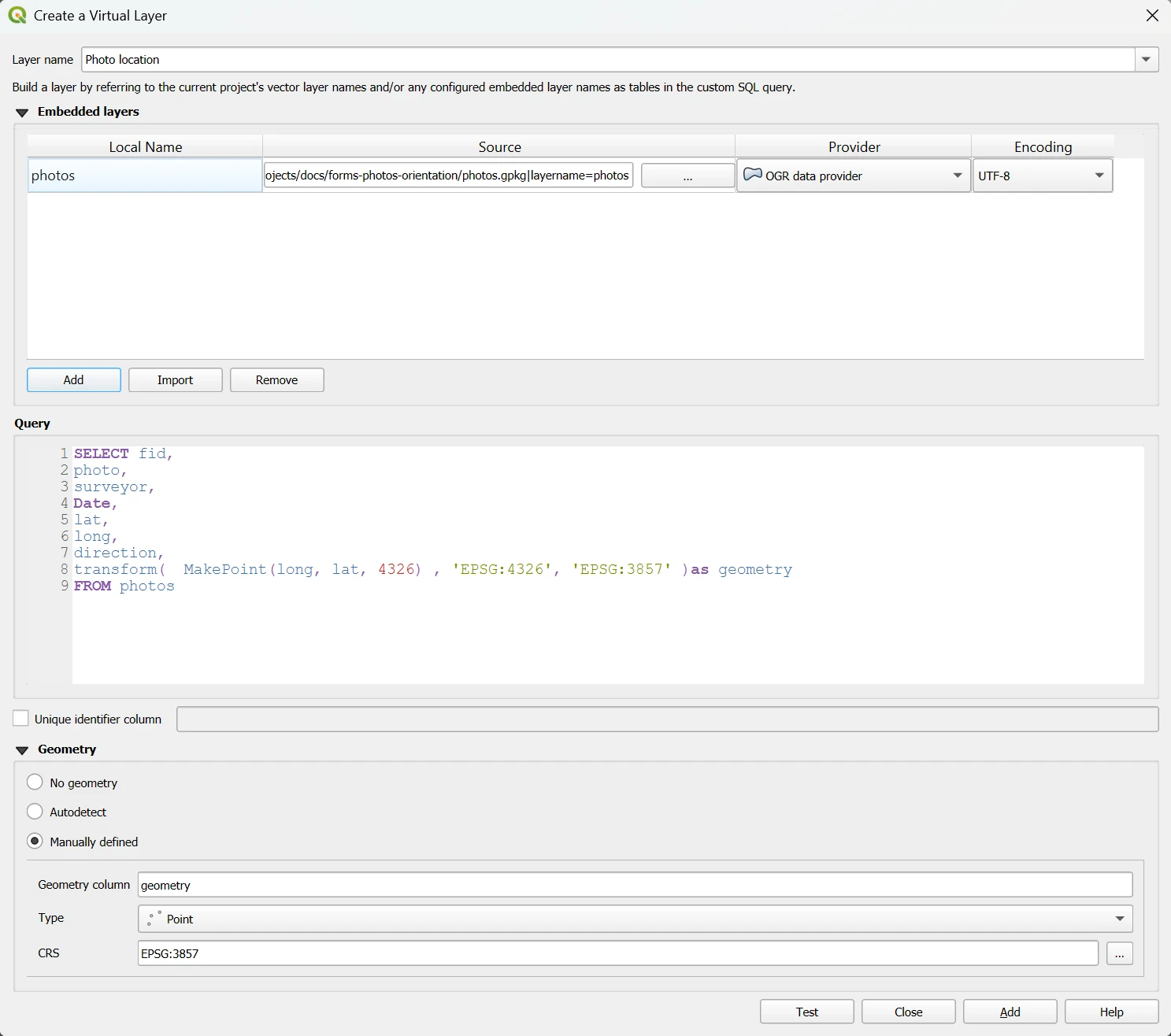
- Geometry column:
Use the Add button to add the virtual layer to the project.
It should appear as a point layer with the same data as the
photoslayer.
Symbology for photo location and direction
Here we will define the symbology of the virtual layer. We will use an SVG marker for the photo location combined with a visualisation of the photo direction.
Navigate to the Symbology tab of the Layer Properties
First we will create a symbol for photo location.
In the Symbol layer type, switch the Simple Marker to SVG Marker and:
- Find an appropriate symbol in the SVG Browser. Here we use a photo symbol from the App Symbols > shopping folder.
- Set appropriate size and colour of the symbol
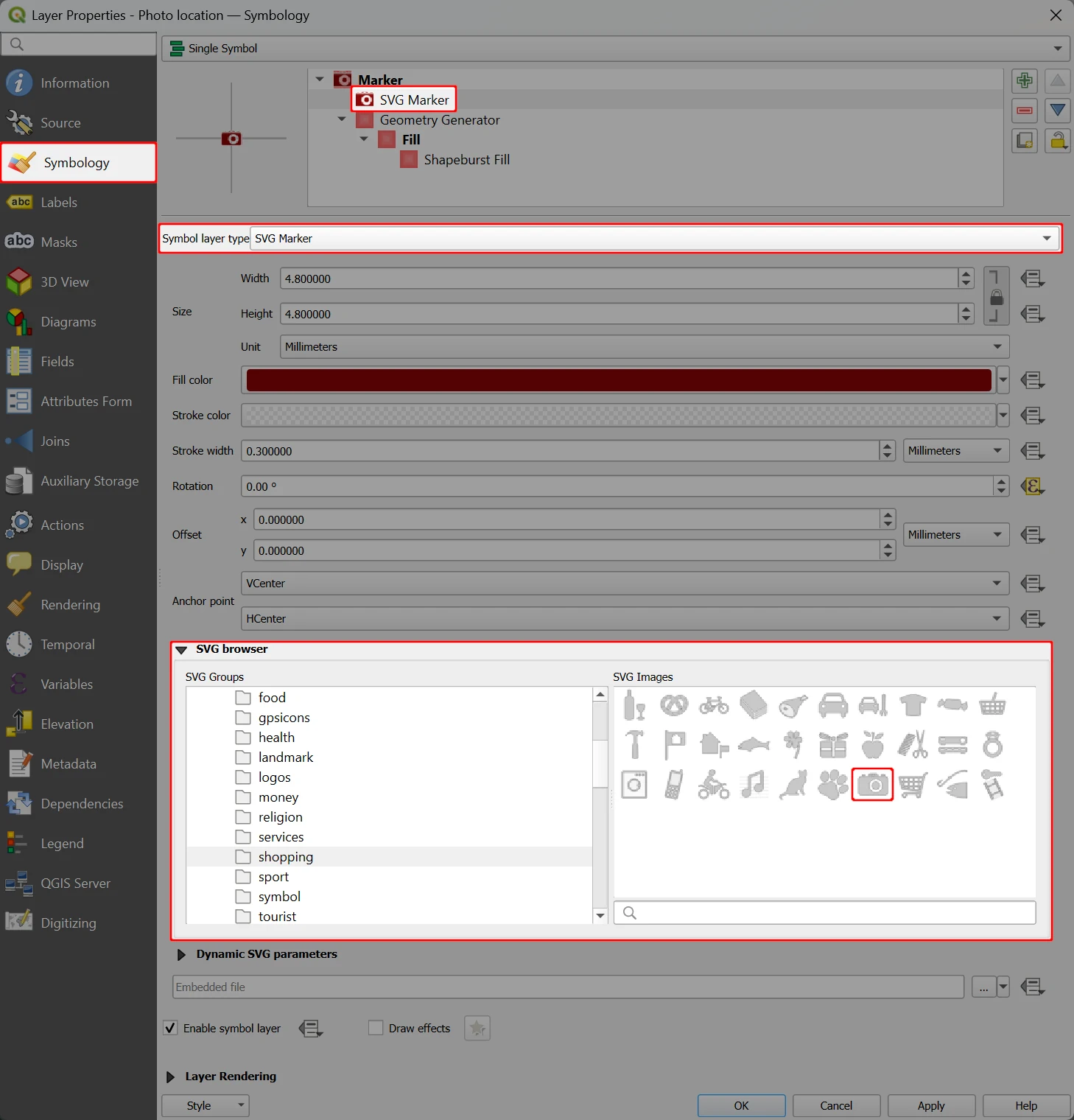
Now we will create a visualisation of the photo direction.
Use the Add symbol layer button to add a new marker located under the SVG marker.
Set it up as follows:
- Symbol layer type: Geometry Generator
- Geometry type: Polygon / MultiPolygon
- Expression:
wedge_buffer(center:=$geometry,azimuth:= to_int( "direction" ) ,width:=45,outer_radius:=100)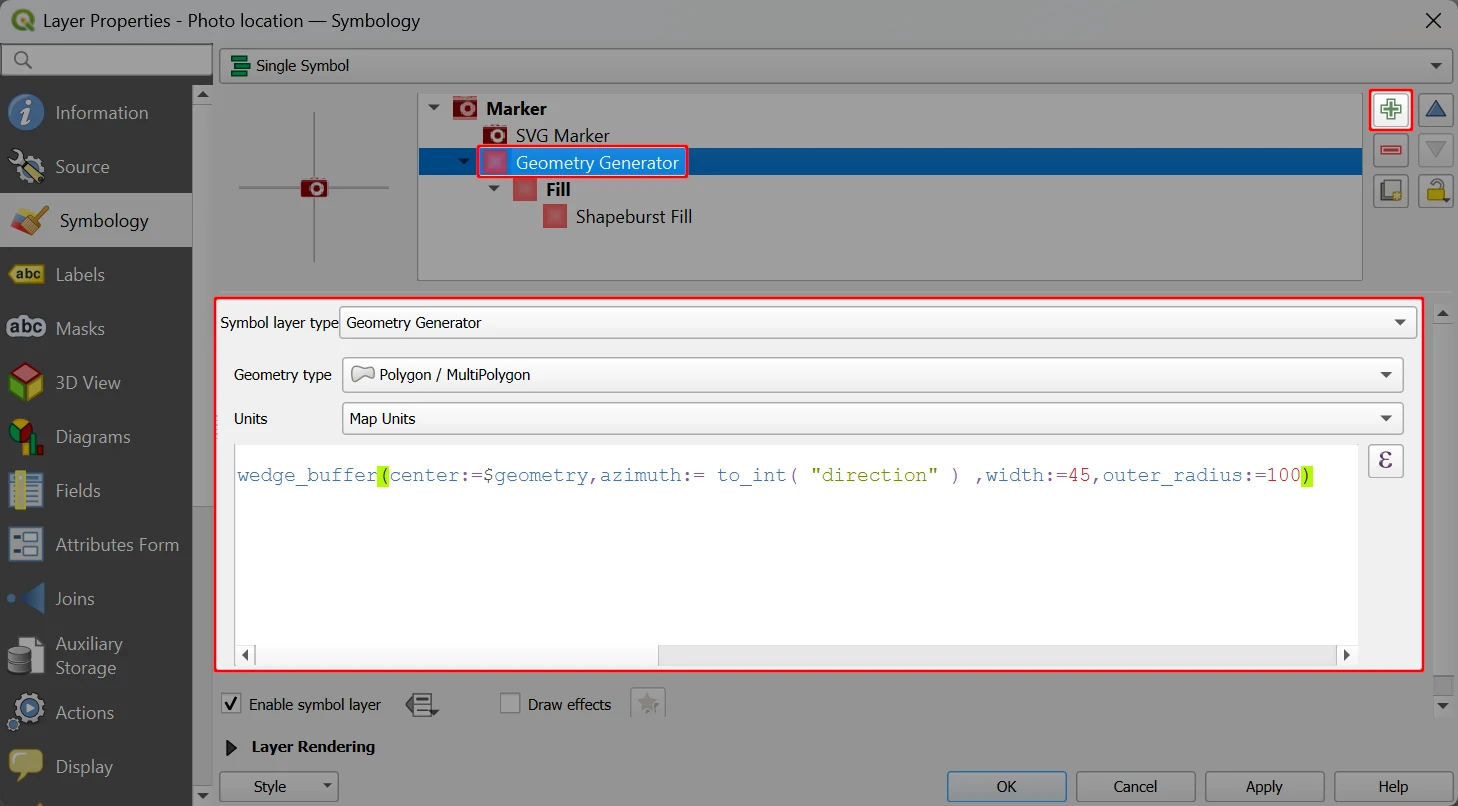
This defines the geometry of the symbol. You can modify its size by changing the
widthandouter_radiusvariables in thewedge_bufferfunction.Finally, we will style this symbol.
- Switch the Symbol layer type from Simple Fill to Shapeburst Fill
- For Gradients colors use the Two color option and choose the colours. We recommend using semi-transparent colours.
- For Shading Style, Set distance as needed, here we use 5.00
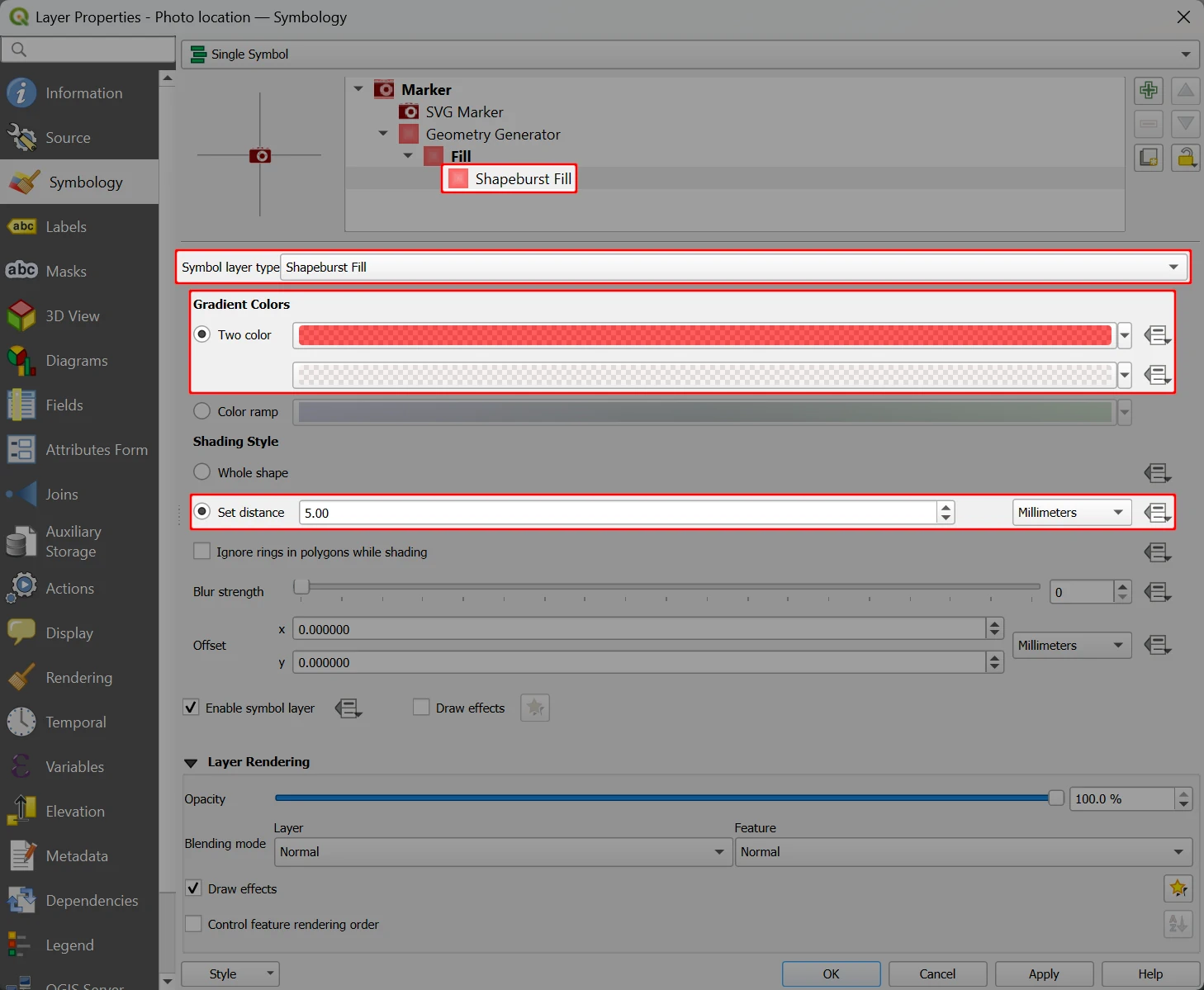
And this is how our setup looks like in QGIS:
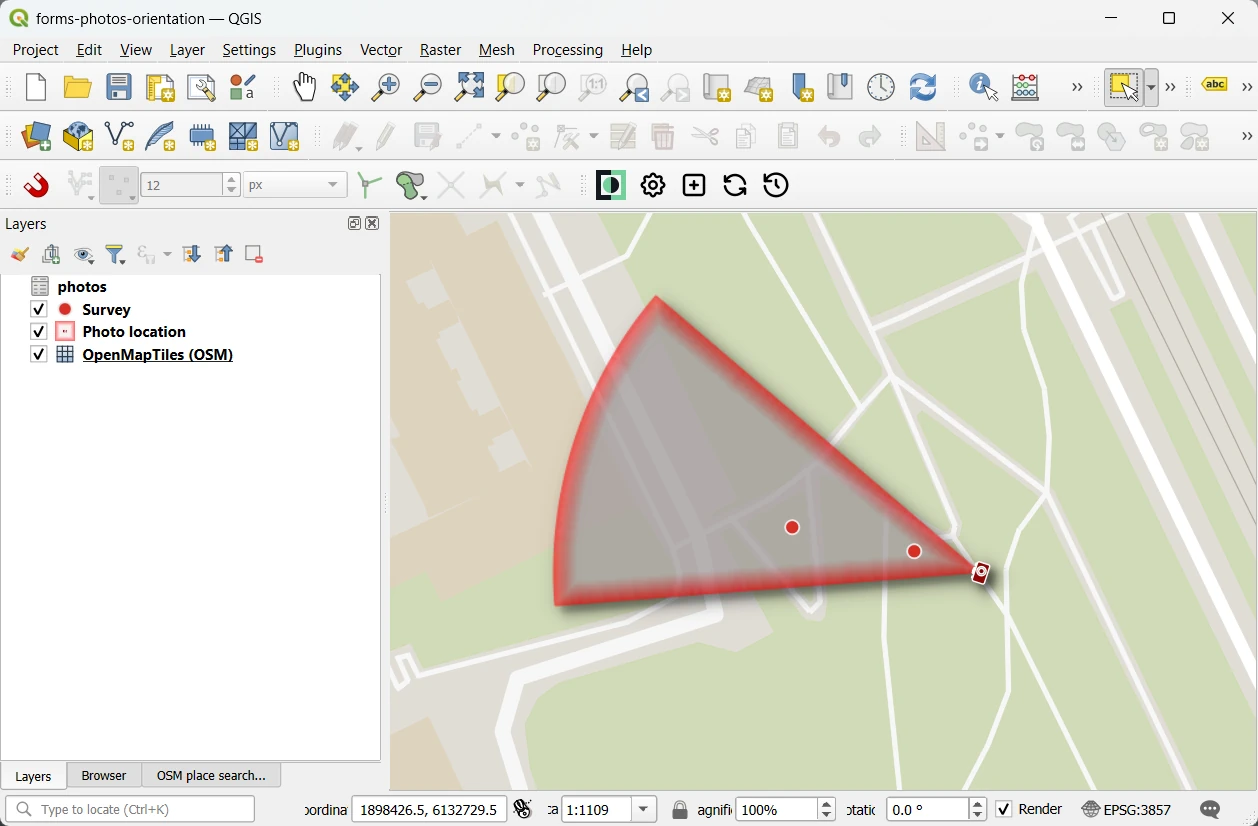
When you add a photo in the mobile app, it will be displayed in this virtual layer: