Appearance
Publishing Projects via OGC API (WMS/WMTS, WFS, OGC API - Features)
You can publish your project data via OGC API as WMS / WMTS, WFS or OGC API - Features. This allows other software or web applications to display your data (read-only).
Early access feature
OGC API read-only access is one of the early access program features. To use this feature, you must first enable it for your workspace.
Enabling OGC API access
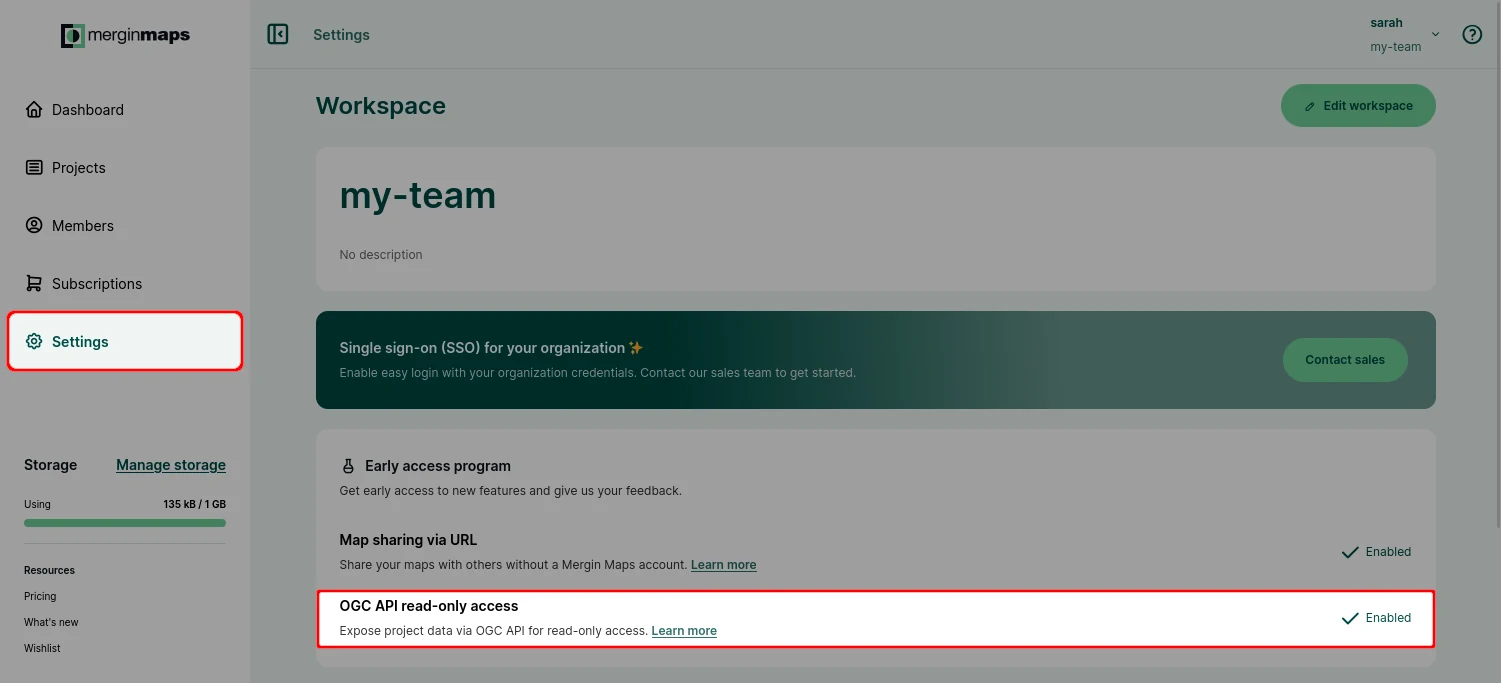
As an early access feature, OGC API has to be enabled for your workspace:
- Navigate to the Settings tab on the dashboard
- Ensure the OGC API read-only access feature is enabled
OGC API project setup
To publish a project via OGC API:
- Set up the QGIS Server parameters for your project in QGIS
- Enable OGC API access at the project level on the dashboard
Set up WMS, WMTS and WFS properties in QGIS
In QGIS, you can specify which layers from your project will be published via WMS/WMTS, WFS and OGC API - Features.
Open your project and navigate to the QGIS Server tab in Project Properties:
- in the Service Capabilities tab, you can (optionally) enable Service Capabilities and define the title and other metadata of your service
- define WMS/WMTS properties in the WMS and WMTS tabs
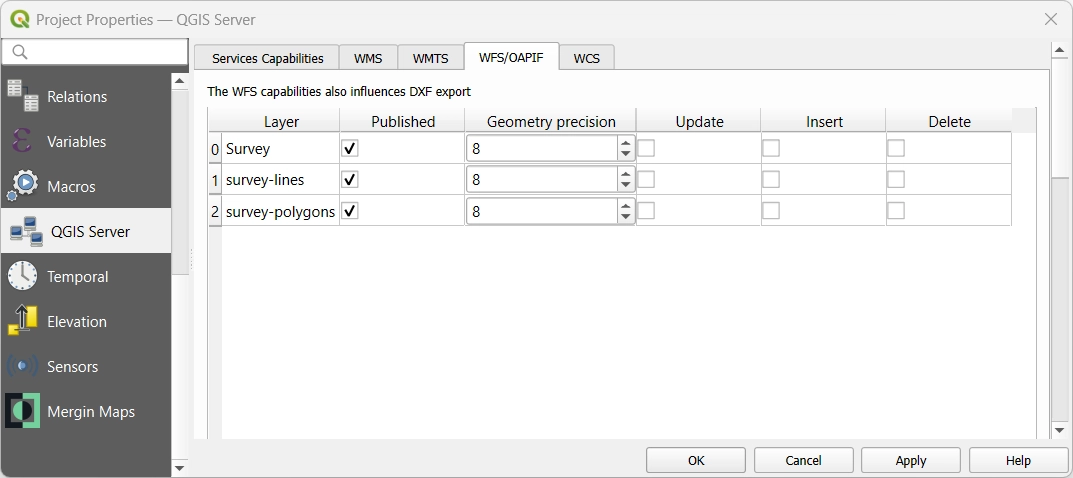
- define WFS and OGC API - Features properties in the WFS/OAPIF tab
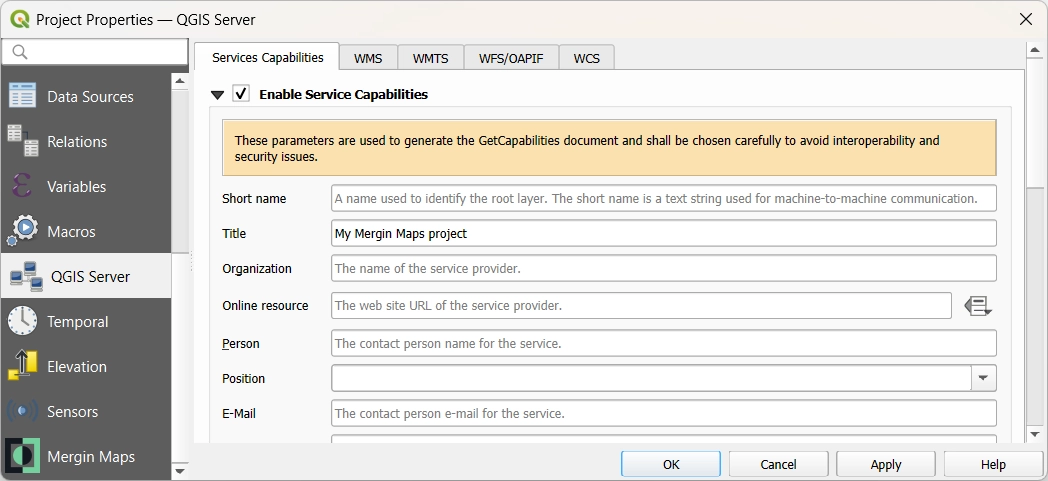
After making changes, remember to save and synchronise your project.
WMS/WMTS properties
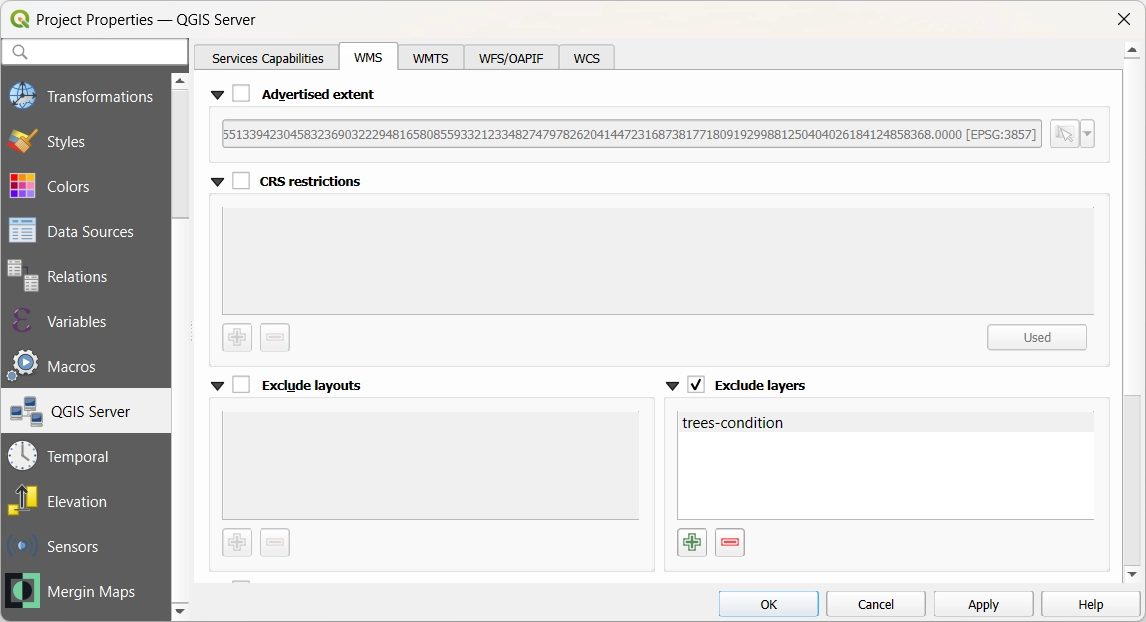
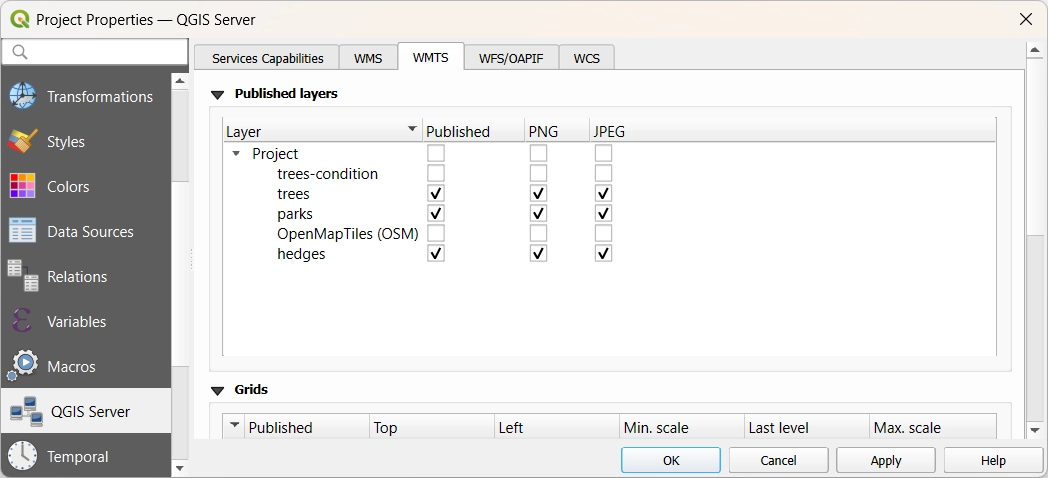
Define layers for WMS/WMTS publication in the WMS and WMTS tabs of QGIS Server Project Properties.
In the WMS tab, you can add or remove layers that will be excluded from publishing.
In the WMTS tab, you can select the layers to be ✅ published.
WFS and OGC API - Features properties
In the WFS/OAPIF tab of QGIS Server Project Properties, specify the ✅ published layers from the list. These layers will be published via WFS or OGC API - Features.
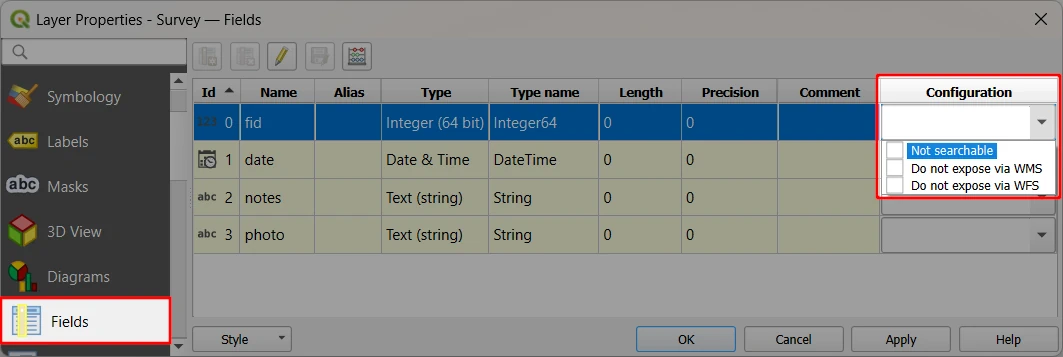
If a published layer contains fields you do not want to publish, navigate to the Fields tab of Layer Properties and check the Do not expose via WMS/WFS option for each of these field.
OGC API for a project
After enabling OGC API access for your workspace, you can enable it for your Mergin Maps projects.
Go to the Project tab on the dashboard and open your project
In the Settings & API tab, you can enable or disable OGC API Access
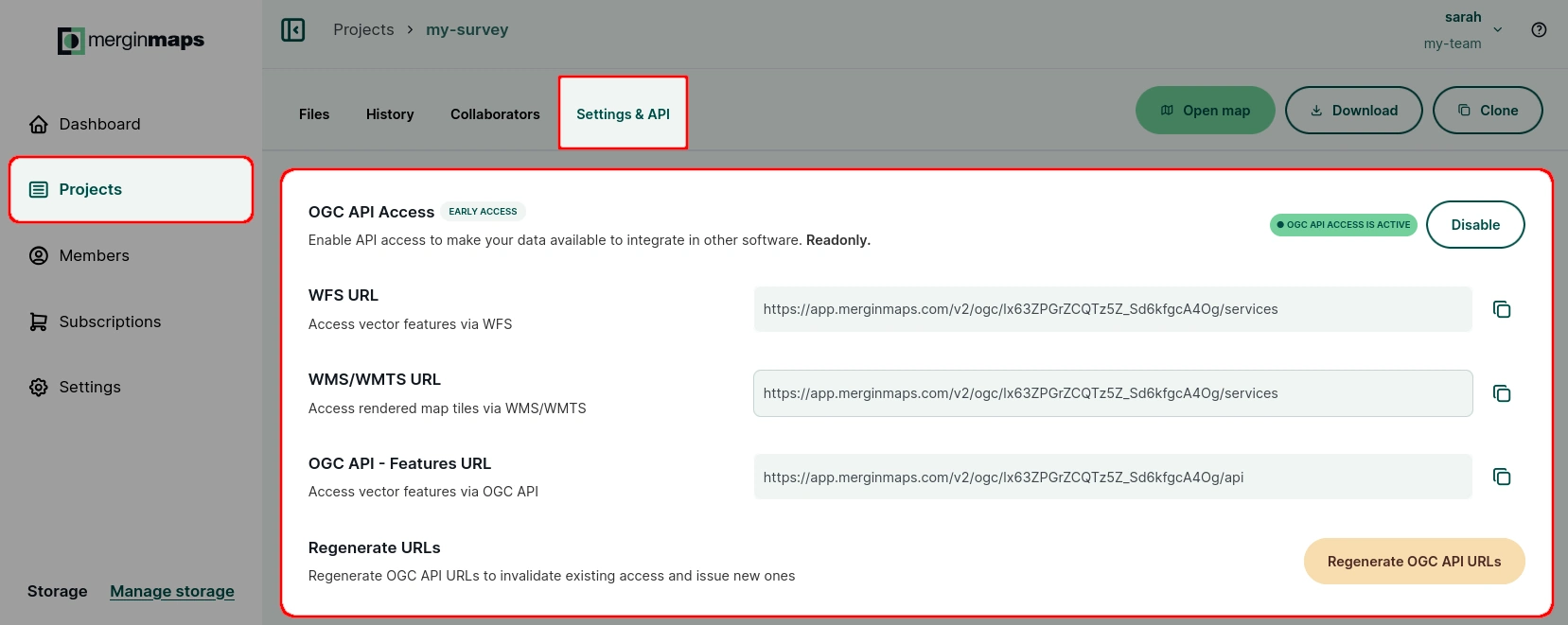
You can copy the WFS URL, WMS / WMTS URL and OGC API - Features URL to connect these services to other software or web applications, such as QGIS.
OGC API access can be disabled at any time. Re-enabling it will restore the same URLs.
Regenerating OGC API URLs
If necessary, you can invalidate existing access and generate new URLs by clicking the Regenerate OGC API URLs button.
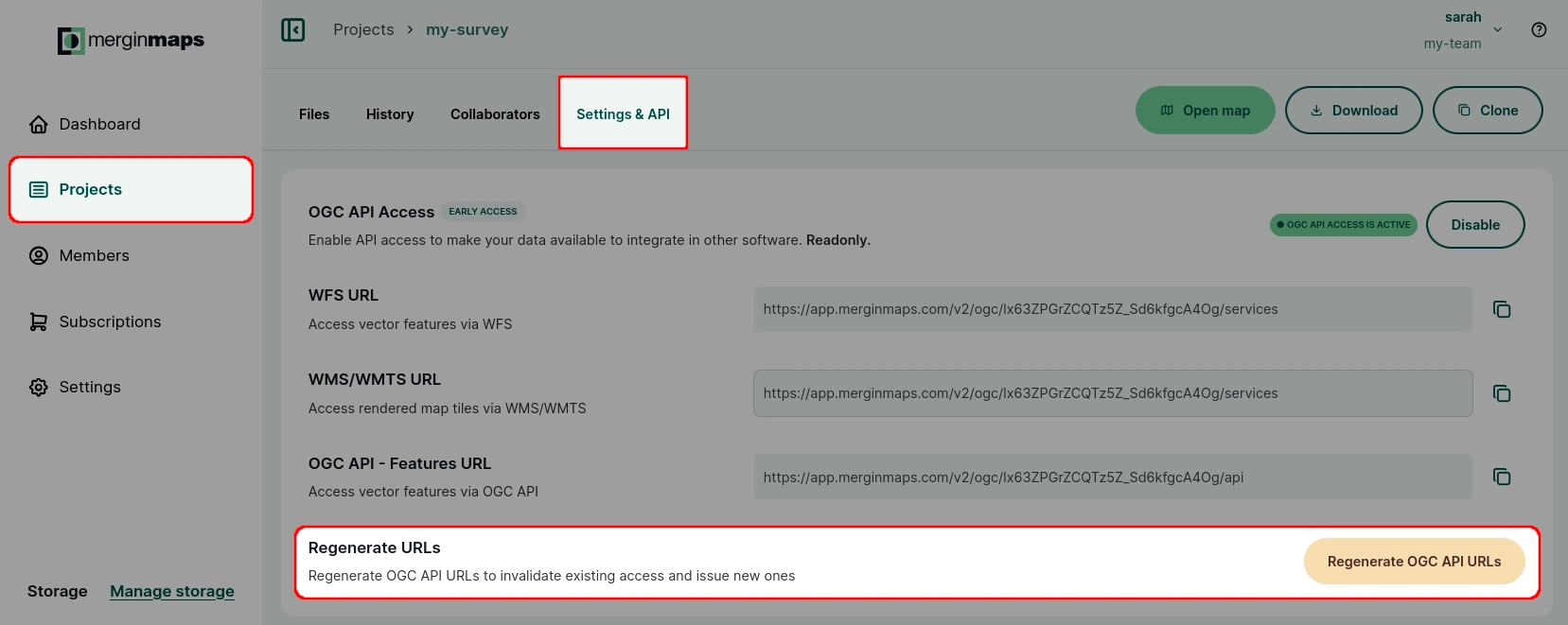
Keep in mind that any applications or services that use the old URLs will lose access immediately and must be updated with the new URLs.
Example connections in QGIS
Use the WFS, WMS/WMTS and OGC API - Features URLs from the dashboard to load web services to any software that supports them.
The following sections demonstrate how to display these services in QGIS.
WMS/WMTS connection
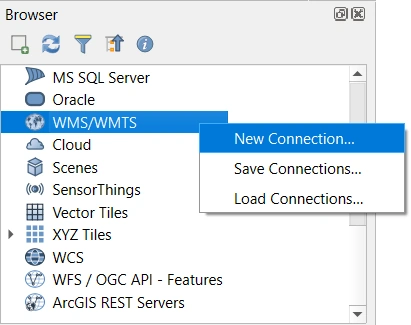
Connect to WMS/WMTS in QGIS via the Browser panel:
Right-click the WMS/WMTS entry and select New Connection...
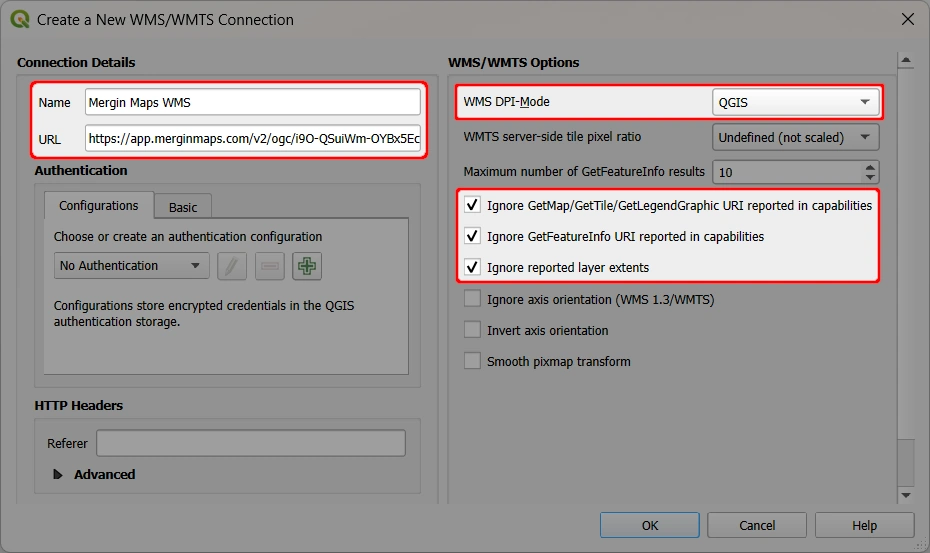
Provide the connection details:
- Name
- URL - enter the URL copied from the dashboard
- set WMS DPI-Mode to QGIS
- select the following options:
- ✅ Ignore GetMap/GetTile/GetLegendGraphic URI reported in capabilities
- ✅ Ignore GetFeatureInfo URI reported in capabilities
- ✅ Ignore reported layer extents
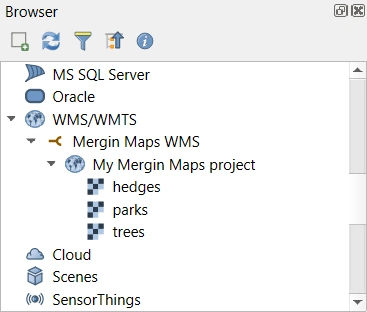
Published layers will now appear in the Browser panel and can be added to your project.
WFS connection
Connect to WFS in QGIS via the Browser panel:
Right-click the WFS/OGC API - Features entry and select New Connection...
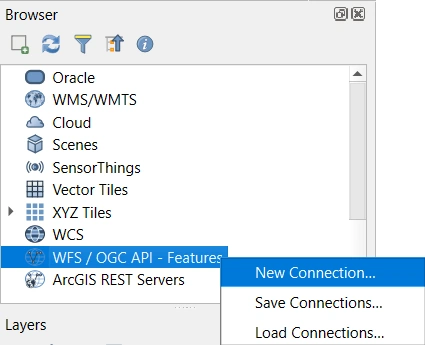
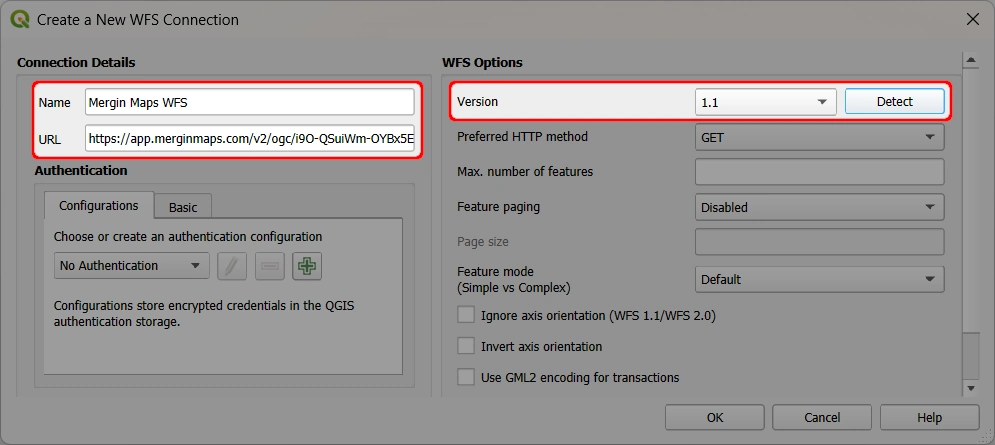
Provide the connection details:
- Name
- URL - enter the URL copied from the dashboard
- Version - click Detect or select 1.1 from the list
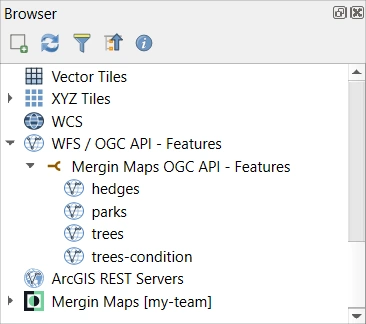
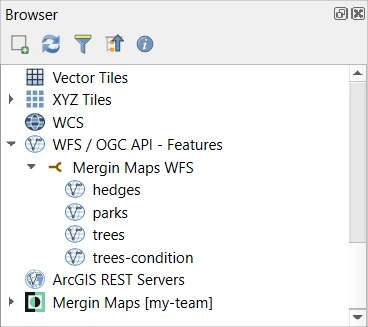
Published layers will now appear in the Browser panel and can be added to your project.
OGC API - Features connection
Connect to OGC API - Features in QGIS via the Browser panel:
Right-click the WFS/OGC API - Features entry and select New Connection...
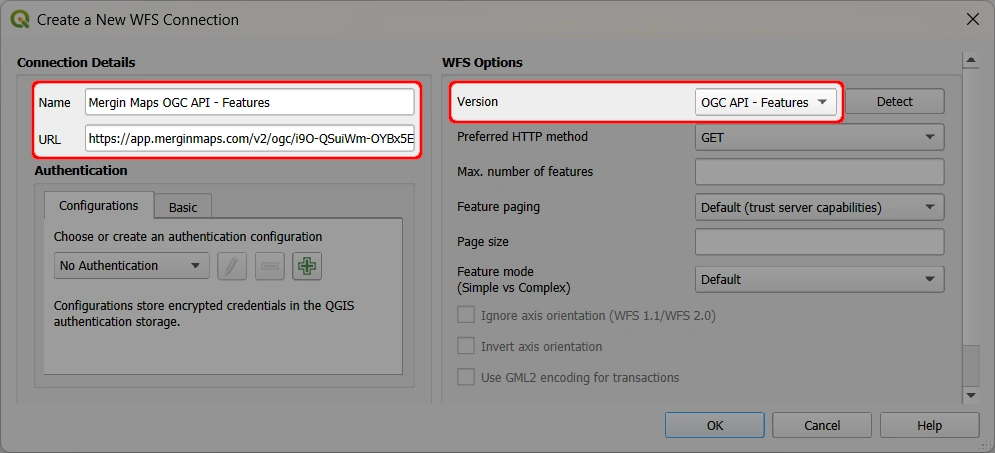
Provide the connection details:
- Name
- URL - enter the URL copied from the dashboard
- Version - select OGC API - Features from the list
Published layers will now appear in the Browser panel and can be added to your project.