Appearance
How to Use Image Guides in the Form
When collecting data in the field, it may be useful to have a visual guide as a reference to ensure that correct information is entered in the form. For example, when collecting information about trees, it may help to see a reference photo of the tree trunk to identify the type of tree correctly.
Example project available
Clone  documentation/image_guide to explore this setup.
Data, layers, and attributes
In this scenario, we want to include a photo guide in the form so that users can compare the type of a tree trunk to a reference picture while collecting data in the field.
The Mergin Maps project contains:
- a survey layer (here:
trunk_type.gpkg) with the form configured to display or hide the image guide - a table (here:
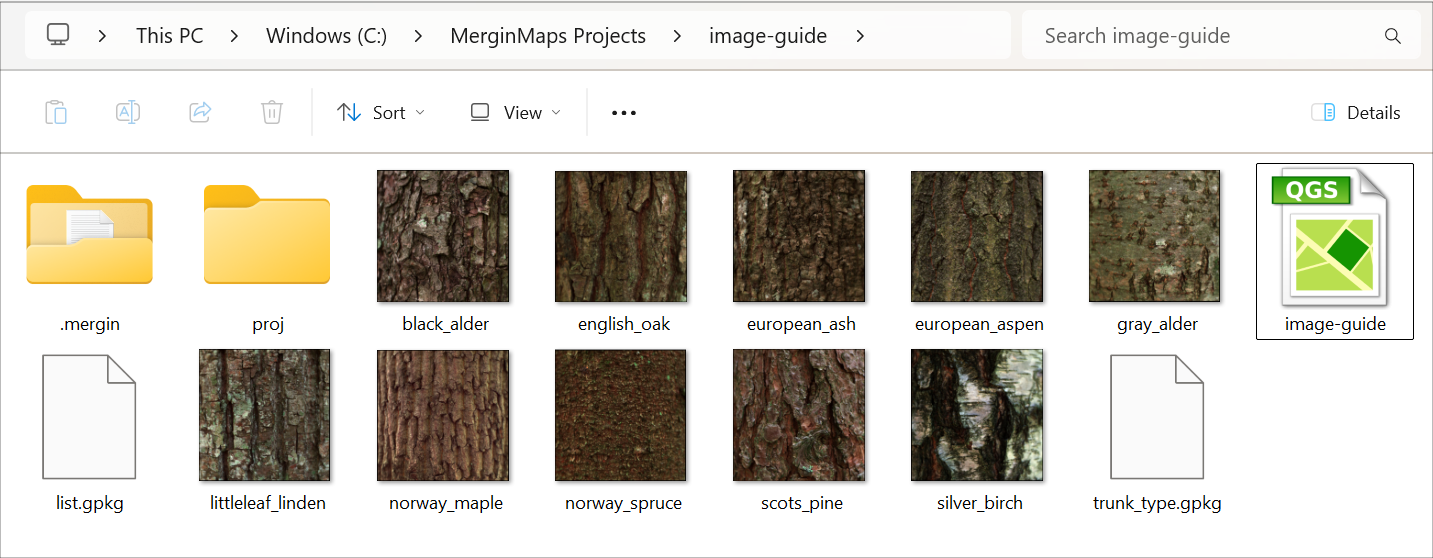
list.gpkg) that is used as a value relation in the survey layer's attributes form, so that users can choose a tree type from a drop-down menu - a reference photo for each type of tree, stored in the Mergin Maps project folder and packaged with the project
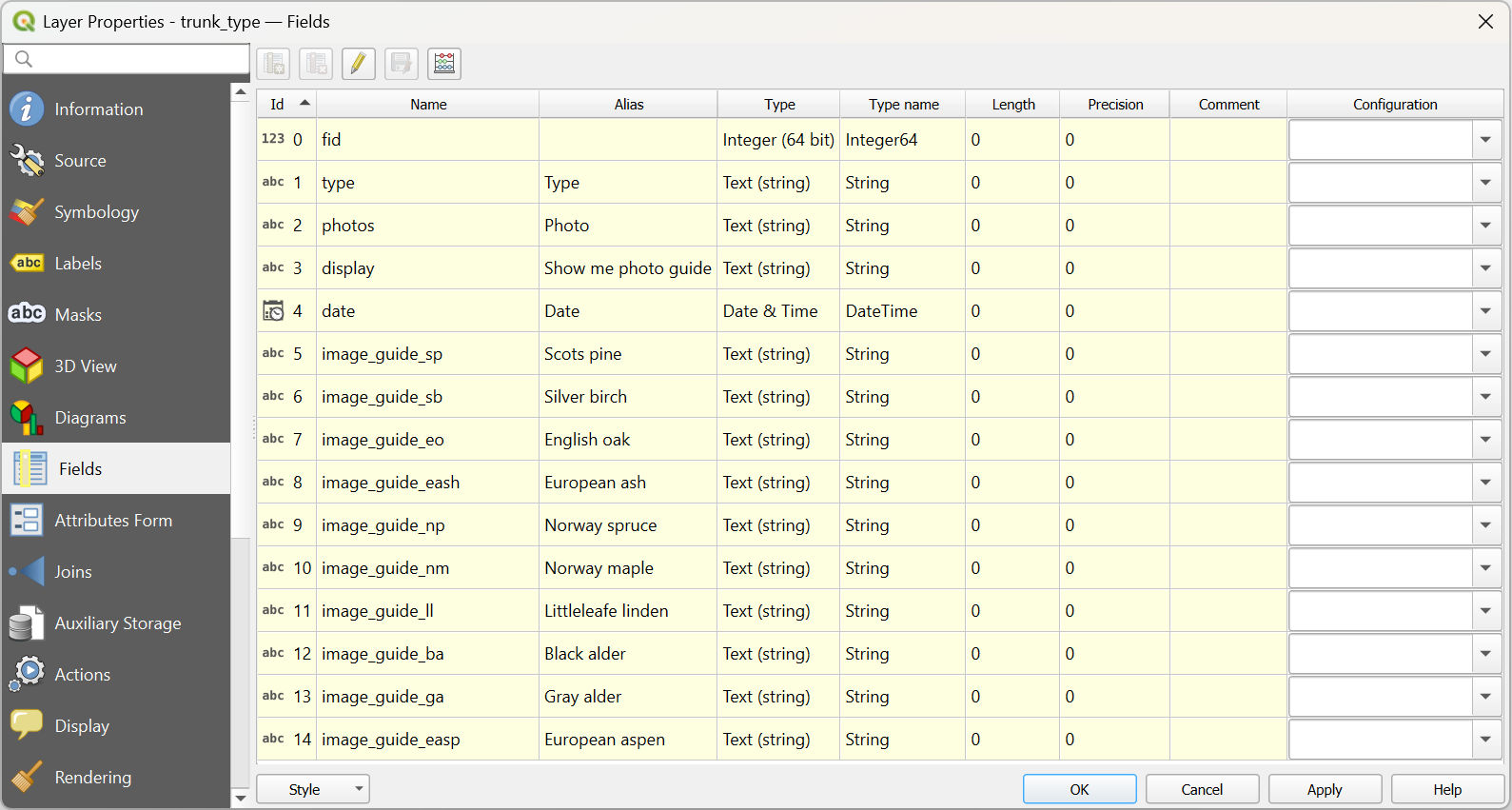
The survey layer (here: trunk_type) has following fields:
typeto store a the tree typephotosto store a photo of the surveyed treedisplayused to display or hide the image guidedateto store the survey dateimage_guide_xyto display the reference image of the specific tree trunk type. There is a separate field for each type.
Attributes form configuration in QGIS
We use the Drag and Drop Designer option in the Attributes Form tab of Layer Properties to configure the form.
The image guide is set up as follows:
The
displayfield uses the checkbox widget with true and false values.The alias of the field is set to Show me photo guide.
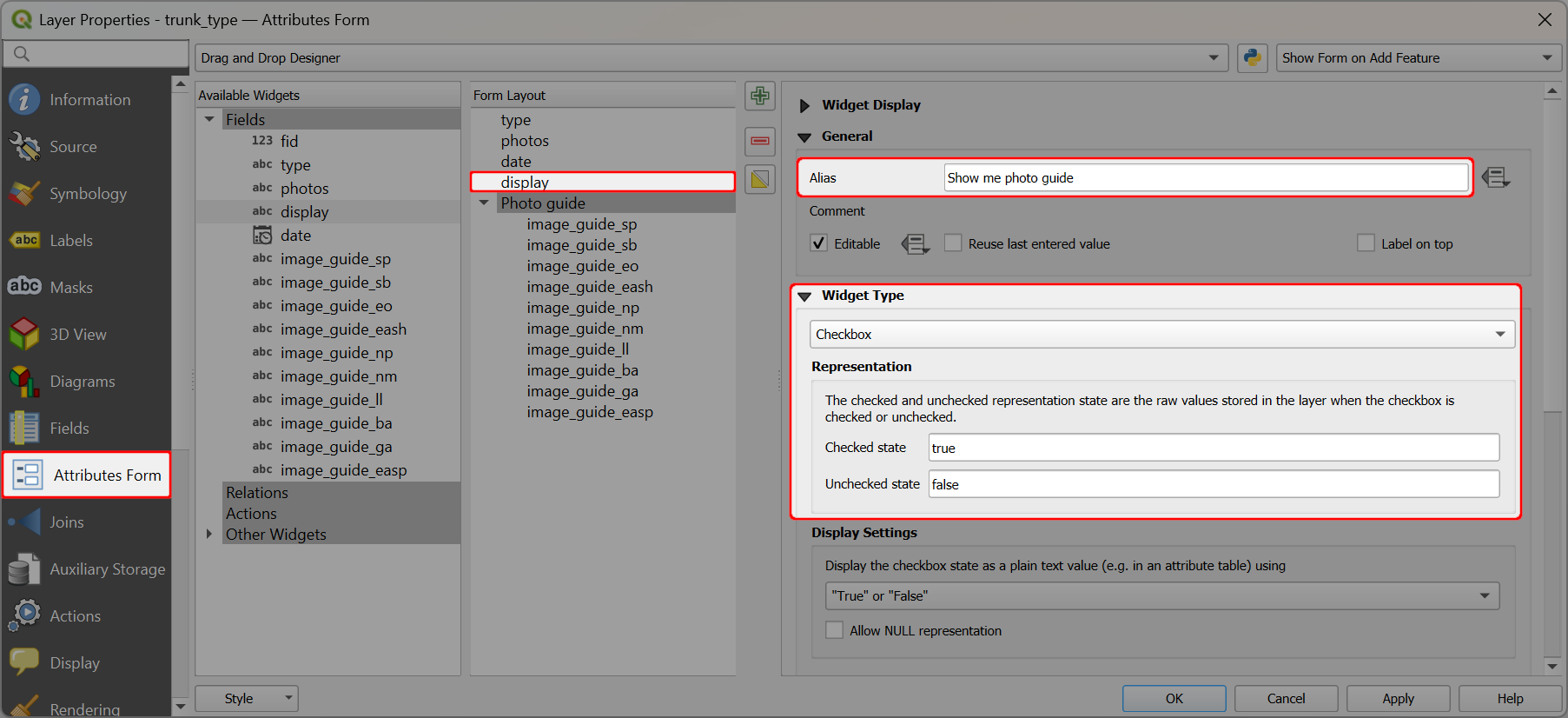
The tab named
Photo guideis used to group allimage_guide_xyfields.The tab uses conditional visibility so that the image guide is displayed only when
display = 'true'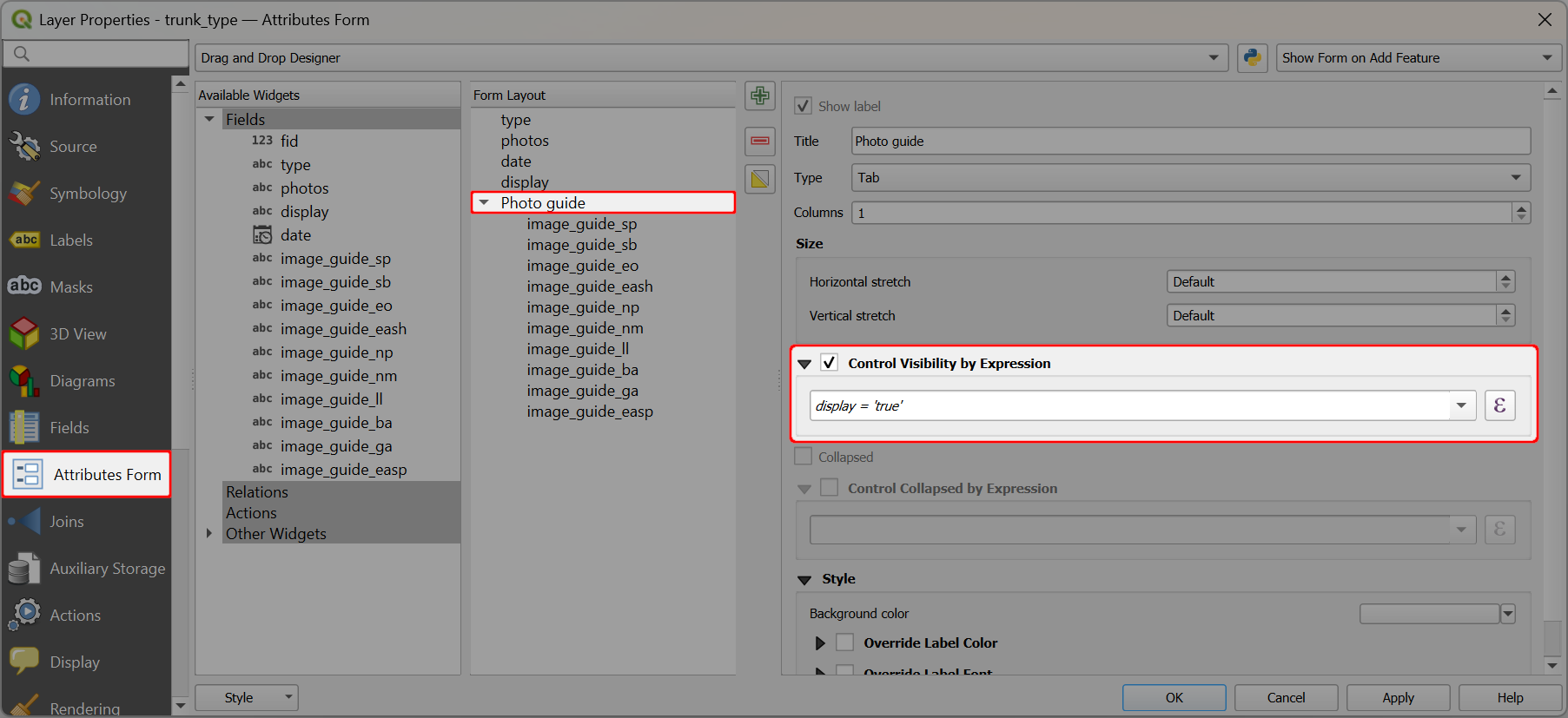
The photo guide fields
image_guide_xyuse the Attachment widget with Relative paths.The Integrated Document Viewer is set to Image to display the picture in the form.
The default values contain the name of the reference picture (such as
scots_pine.png). This ensures that the image guide is present when a new feature is created.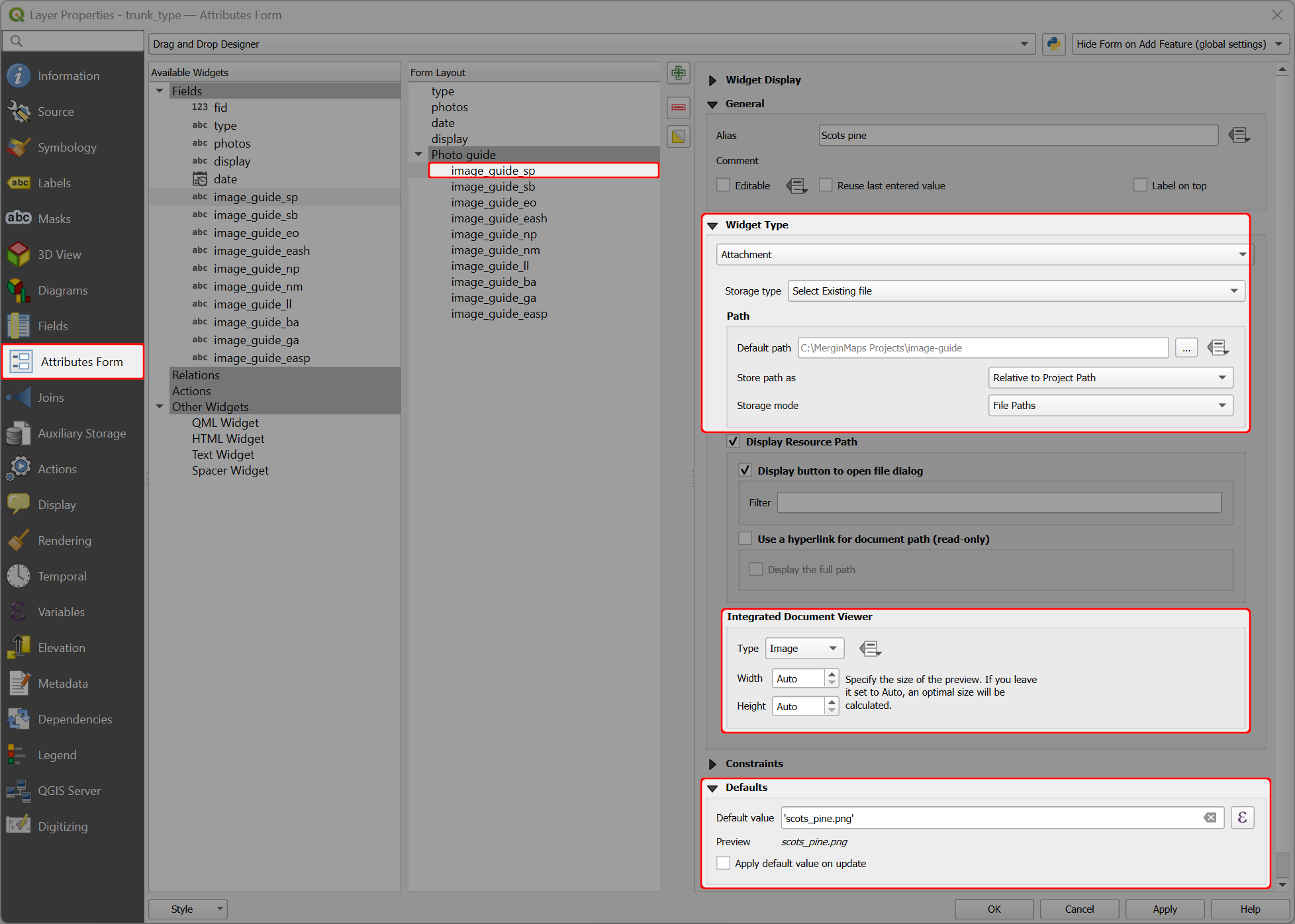
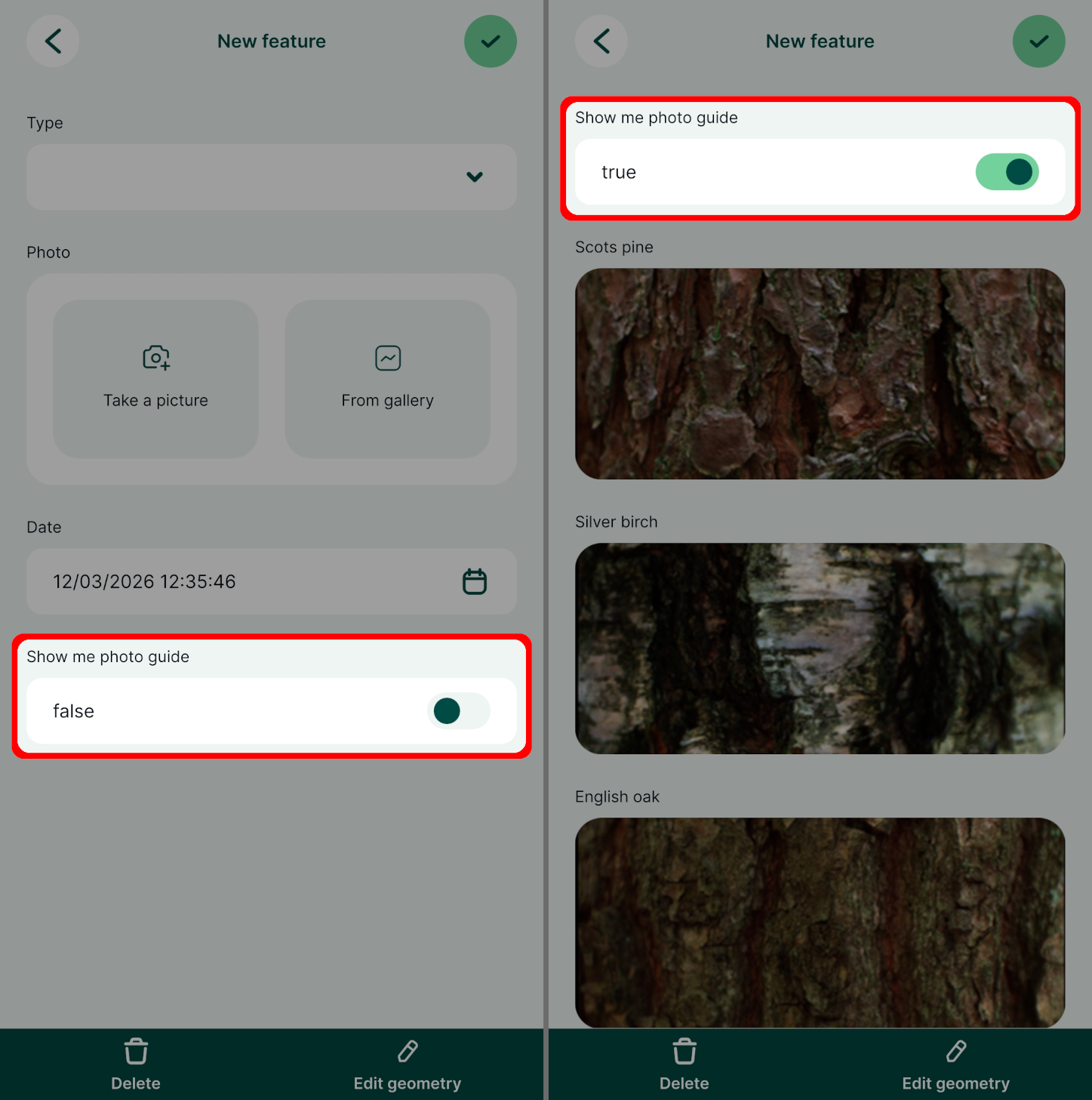
Image guide in the mobile app
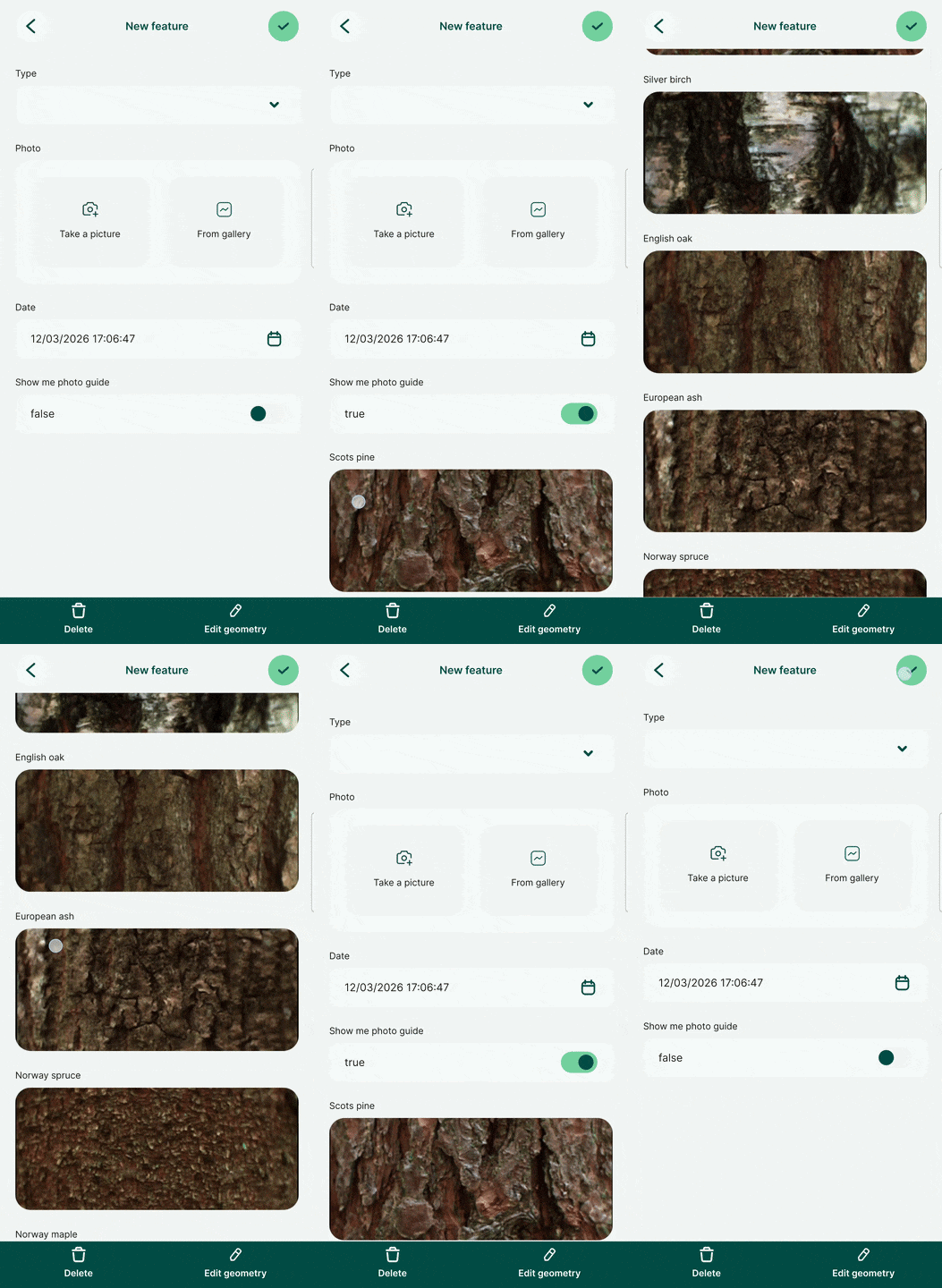
When the form is opened in the mobile app, the image guide can be easily displayed and hidden by toggling the Show me photo guide checkbox.